

The Orchestrator is a campaign planning tool that is useful when several campaigns are planned for the same week and may target the same contacts. Its goal is simple: send the right messages, at the right time, without over-soliciting.
Specifically, the Orchestrator is based on two fundamental principles: frequency rules and importance levels.
Frequency rules determine how many communications a contact can receive per day or per week. Communication Priorities indicate the priority of the campaigns.
By combining these elements, the Orchestrator calculates the best distribution of mailings to reduce exclusions, improve prioritization, and provide a clear view of the results before sending.
In this article, you will learn how to orchestrate a week of campaigns.
Required plan: Boost |
Limitations
- Only batch mailings are supported by the orchestrator. Therefore, it is not possible to send single mailings or include automated campaigns.
- The calculation can take from a few seconds to a few hours, depending on the volume of the campaigns to be processed.
- The orchestrator supports the following channels: Emails, SMS, and Push notifications.
- It is not possible to use the Frequency Optimizer and the Orchestrator in the same project.
- Targeting becomes fixed once the orchestration has been approved. If a contact becomes ineligible (e.g., unsubscribe), they will still be excluded. The eligibility rules continue to apply at the time of sending.
Step 1: Configure the Orchestrator
1.1 Go to Project → Other Configurations and click Orchestrator:
1.2 Activate the orchestrator.
1.3. Modifiy the settings. You must have the permission as a user to configure the orchestrator.
Frequency Rules
Frequency rules allow you to define a limit on the number of communications per channel that your contacts can receive per day and/or per calendar week (Monday to Sunday). You can modify the default rule. On the other hand, you can create custom rules for groups, personas, or All contacts to your frequency rule. For each rule, apply a communication channel. If you create multiple rules, you can set their priority by rearranging them in the rules list.
Communication Priorities
For the Orchestrator to function, its configuration includes a system of priority levels. This system allows you to assign a priority level to your communication types. There are three levels of importance:
- Normal: Normal campaigns are counted within the frequency limits and cannot exceed them.
- High: High campaigns are counted within the frequency limits but can exceed them.
- Priority: Priority campaigns are not counted within the frequency limits.
Note that it will also be possible to change the priority assigned to a communication type when editing the details of a campaign.
Alerts
You can configure alerts on two indicators to help you determine if an orchestration is right for you:
- Attrition rate
- Evolution
These alerts will be displayed on the campaigns in question after initial setup to help you decide on next actions more quickly.
Step 2: Plan the Campaigns
Planned campaigns appear in the campaign calendar. Campaign with the Draft status will be included in the orchestration. You can therefore create campaigns without final content in advance. However, be sure to complete and approve each campaign before its send date. Once you have added all the campaigns for the week, you can proceed to the next step.
Step 3: Calculate the Orchestration
3.1 In the upper part of the calendar, click Orchestrate a week: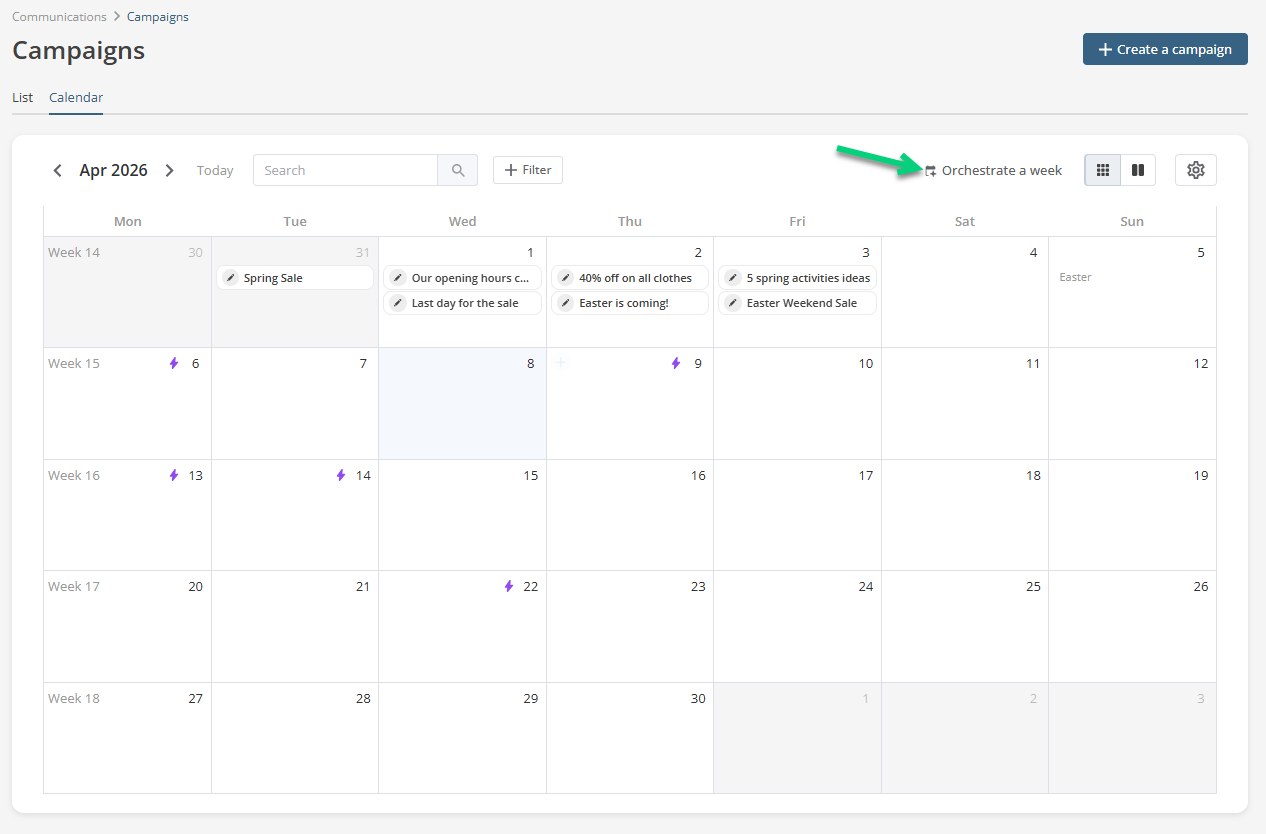
3.2 Select a week to orchestrate.
3.3 Indicate the priority for each campaign: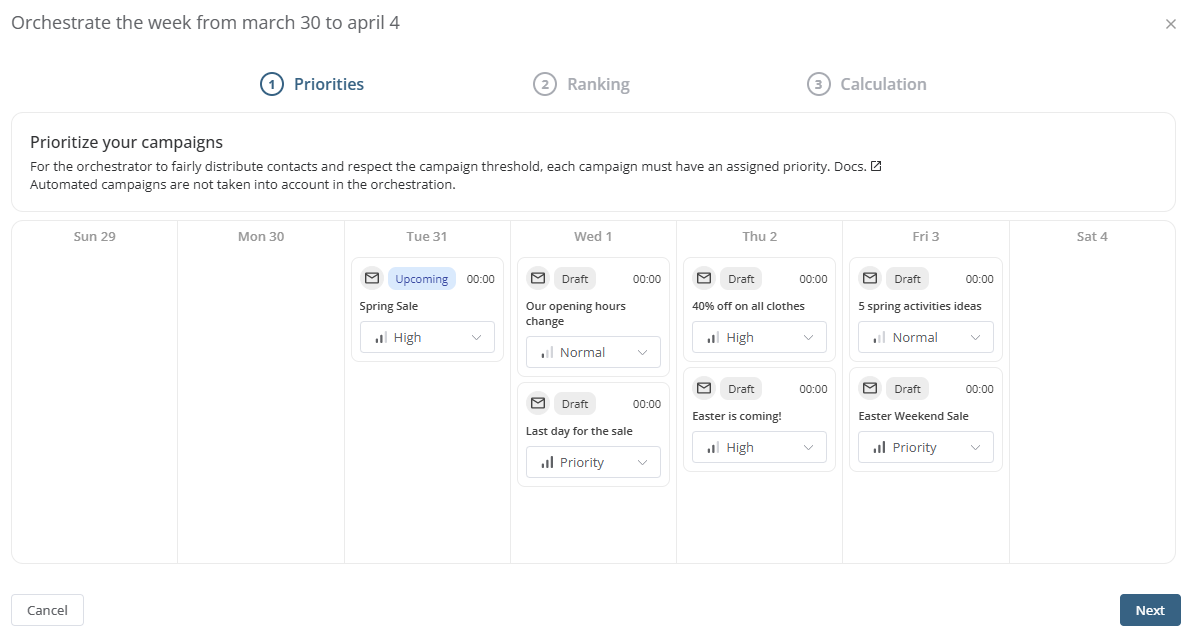
3.4 Click Next. If you have several campaigns with a Normal priority, you can sort them in priority order.
3.5 Click Launch the orchestration. The calculation can take from seconds to hours, depending on the volume to process.
❗It is not recommended to orchestrate too far in advance. Contacts added or subscribed after the calculation will not be included in the orchestration. Once the orchestration is launched, audiences are frozen until the next orchestration.
Step 4: Approve the Orchestration
4.1 Review the calculation results and click Apply orchestration if you are satisfied: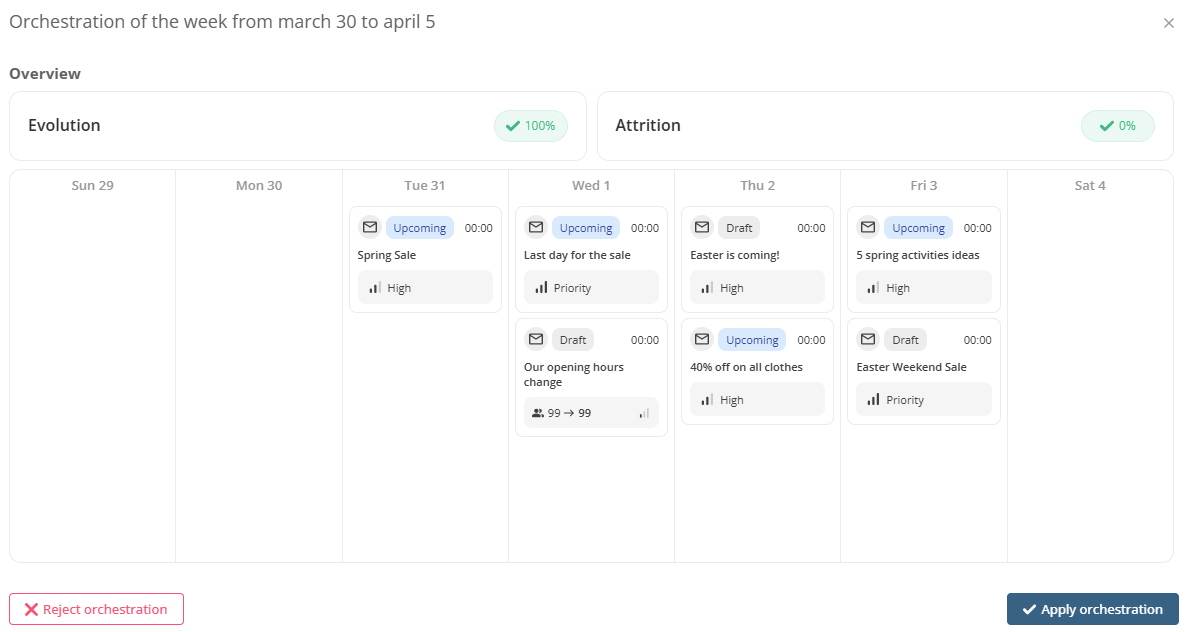 Draft campaigns are included in the calculation, but they must be completed and approved to be sent.
FAQ
If contacts are added after orchestration, are they included in the calculation?
No. Contacts added to the project after orchestration are not included in the calculation. To include them, you must un-orchestrate the week and then start a new orchestration.
What happens if I add a campaign after orchestrating a week?
The campaign will not be included in the orchestration. It will be sent regardless of frequency rules and importance levels.
To include it, you must un-orchestrate the week, add the campaign, and then restart the orchestration.
What happens if I change the date of a campaign?
You must un-orchestrate the week, change the date, and then restart the orchestration.
If any campaigns have already been sent, they will be included in the new calculation.
What happens if I un-orchestrate a week that has already started?
Campaigns that have already been sent are not cancelled. During a new orchestration, these campaigns are taken into account in the calculation.
What happens if I cancel a campaign?
You have two options:
- Un-orchestrate the week, cancel the campaign, then restart the orchestration to obtain a new calculation.
- Cancel the campaign without un-orchestrating: in this case, the orchestration calculation is not updated.
What happens if I orchestrate during the week?
The Orchestrator takes into account the campaigns already sent and adjusts the distribution of the remaining campaigns accordingly.