

To be able to send mobile notifications, you must first add the mobile applications on which you plan to send these notifications. Dialog Insight supports mobile notifications to iOS (Apple) and Android (Google) apps via Google’s Firebase Cloud Messaging.
Prerequisites
- Create a Firebase Cloud Messaging authorization
- Involve your IT team
- Have a mobile app (ready or in development)
Step 1: Add Your Mobile App
In Communications -> Push Notifications, go to Configurations: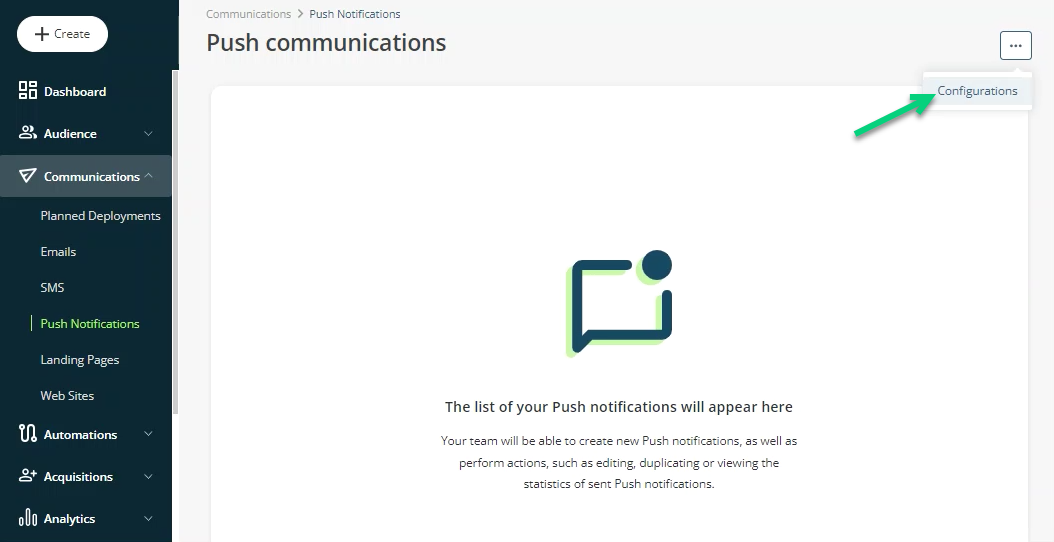
Click Add your mobile app: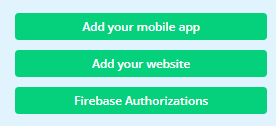
Click the pencil icon to rename the app and click Configure: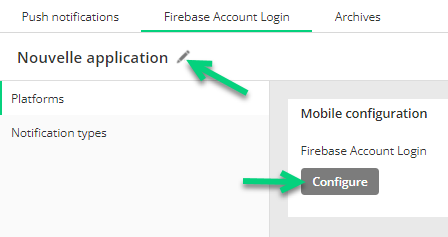
Choose from the drop-down list the authorization created previously: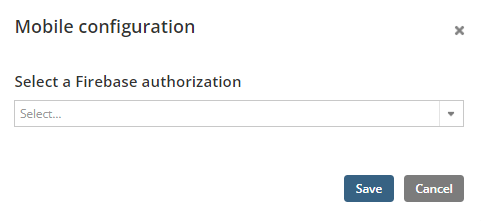
Once the configuration is done, you get the Dialog Insight key (Application ID). This key is different for each platform. It will be used in the configuration of the DI library in your mobile application
Step 2: Retrieve the Firebase Tokens and Statistics
Firebase tokens must be transmitted to Dialog Insight using the web services in order to send the notification to the right contact. Additionally, information regarding the opening of the notification must also be transmitted to us.
Please note that this procedure must be carried out by your developers.
2.1 Create an access key for the Firebase tokens.
2.2 Read the documentation on the web services to use.
Canadian platform French platform |
2.3 If you want to create or edit the contact who uses the mobile app in the DI project, you must do it using DI standard tools (Web services or imports). Note that the contact creation is done if no project key match is found.