

Dialog Insight lets you create forms to collect or update contact information and manage subscriptions. Depending on your goal, you can create one of the following types of forms:
- Opt-in: allows a person to subscribe to your communications.
- Profile Update: allows a contact to update their information or preferences.
- Lead Generation: collects information from contacts or leads.
Opt-in Forms
Opt-in forms allow an existing contact in your list or a lead to subscribe to your communications. When a person submits the form, Dialog Insight creates or updates the profile according to the selected settings, then applies the selected subscription status.
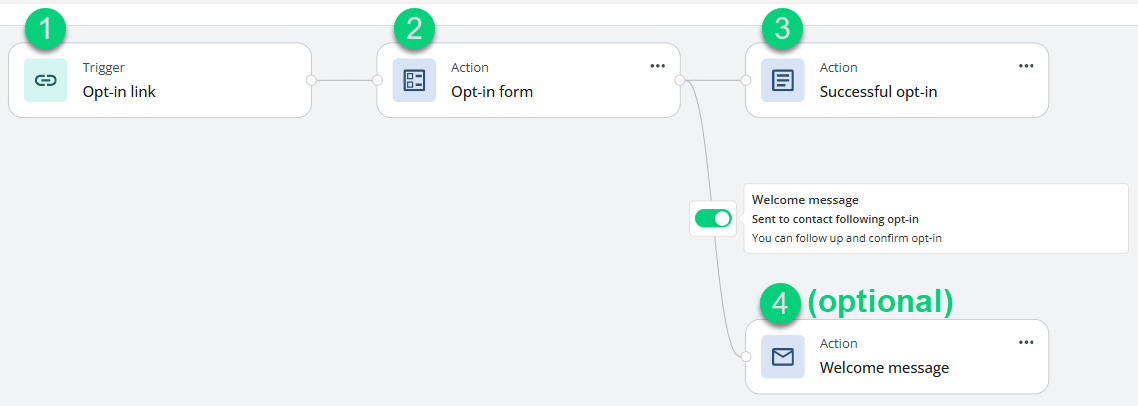
The process generally works as follows:
- The person clicks a link to the form.
- The person completes the form.
- The person is redirected to a page confirming their subscription.
- An email can then be sent to welcome the person or provide additional details.
Important: You must generate a process for each language.
For the opt-in process, you have two hosting options:
1. Hosted by Dialog Insight
If you choose to host the form on the Dialog Insight server, the process generates a link to the hosted form. You can copy this link into a message or onto a page on your website.
→ Create an opt-in form hosted on Dialog Insight
2. Embedded on your website
If you want to embed the form directly on your website, the process generates the form’s HTML and CSS code. You can then copy it to the page or pages of your website where you want to display the form.
→ Create an opt-in form embedded on a website
Profile Update Forms
Profile update forms allow an existing contact to update their information, preferences, or subscriptions. Unlike a subscription form, a profile update form is pre-filled with the information already known about the contact. The contact usually accesses the form from a personalized link in an email.
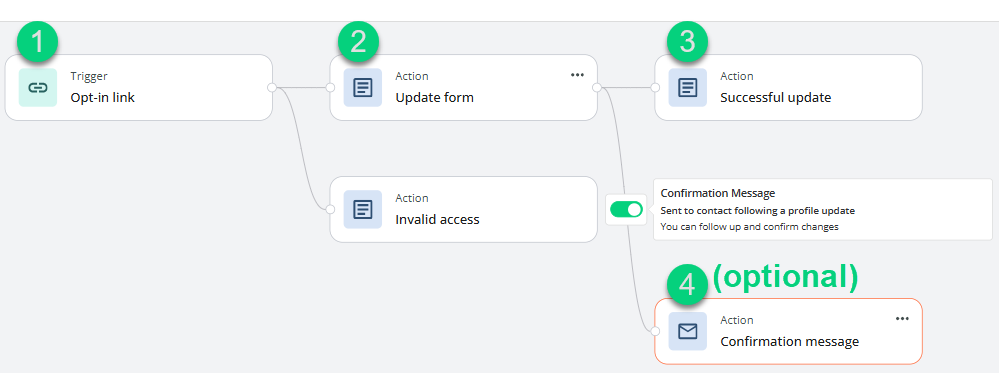
The process generally works as follows:
- The person clicks a link to the form.
- The person completes the form.
- The person is redirected to a page confirming the update.
- An email can then be sent to provide additional details.
 Important: You must generate a process for each language.
For the profile update process, you have two hosting options:
1. Hosted by Dialog Insight
If you choose to host the form on the Dialog Insight server, the process generates a link to the hosted form. You can copy this link into a message or onto a page on your website.
→ Create a profile update form hosted on Dialog Insight
2. Embedded on your website
If you want to embed the form directly on your website, the process generates the form’s HTML and CSS code. You can then copy it to the page or pages of your website where you want to display the form.
→ Create a profile update form embedded on a website
Lead Generation Forms
Lead generation forms allow you to collect information from leads or contacts. For example, you can use them for demo requests or white paper downloads. Unlike an opt-in form, a lead generation form does not necessarily collect consent to receive communications. When a lead completes a lead generation form, a contact is created in your project if they do not already have a profile.
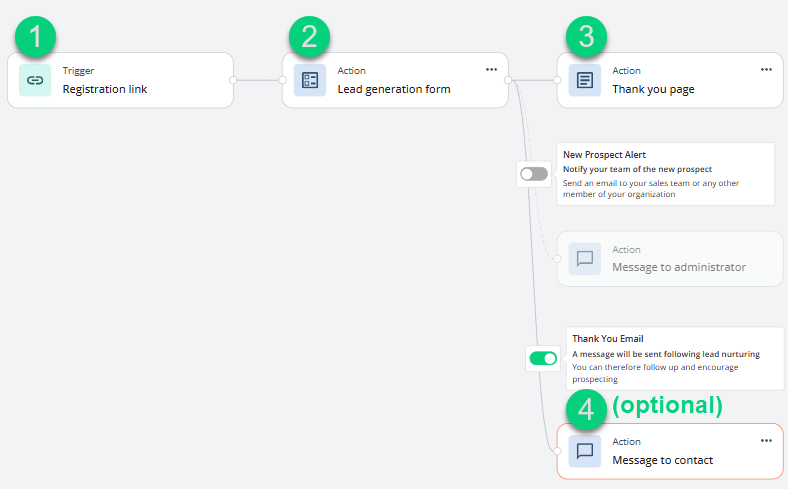
The process generally works as follows:
- The person clicks a link to the form that you include in a communication, such as an email or SMS message.
- The person completes the form.
- The person is redirected to a page confirming that the form was submitted.
- An email can then be sent to provide additional details, such as a link to download a file. This message can also be an opportunity to invite the lead to subscribe to a communication.
 Important: You must generate a workflow for each language.