

The Interest Profiles feature helps you better understand the topics your contacts care about based on their interactions with your content. When a contact clicks a link in an email or visits a page tracked with Journey, the associated content can be analyzed to determine whether it matches an interest you created. These interests are then automatically assigned to the relevant contacts and can be used to target contacts or personalize email content based on an interest.
To learn more about the data processed by AI, read this article.
Navigation path: Audience → Targeting → Interest Profiles Required plan: Grow/Boost |
Creating an interest
Go to Audience → Targeting → Interest Profiles, enter the name of the interest, and click Add:
| If you use a CDP structure, create the interest in the project containing the data to be analyzed—that is, the project containing the communications with the clicked links or the project in which Journey is configured. For targeting purposes, interests created in child projects can be used from a parent or unified project. However, interests created in a parent project are not available in its child projects. |
Limits by plan
The number of interests you can add depends on your plan.
Grow: 15 interests
Boost: 150 interests
This limit is calculated over a rolling 12-month period. Each interest you create therefore counts toward your plan’s limit for 12 months, even if you delete it during that period. Deleting an interest does not allow you to immediately create another one in its place.
Examples:
- If you create 15 interests, you cannot delete one and immediately replace it. You must wait until that interest falls outside the rolling 12-month period.
- If you have created 7 interests, you have 8 creations remaining. If you delete one, you can still create only 8 more because the deleted interest continues to count toward the limit for 12 months.
Interest calculation
When a contact clicks an eligible link in an email or visits a web page tracked with Journey, the system analyzes the content of the page. If the content matches an interest, that interest is automatically assigned to the contact. A single match is enough for the interest to be assigned.
Method 1: Links in an email
Add links to your emails that direct contacts to content associated with the topics you want to track, such as articles, product pages, events, services, or resources. When a contact clicks a link, the system analyzes the content of the linked page to determine whether it matches one of the interests you created. For better results, use links to stable, clear content that accurately represents a specific topic. If the content of the page changes frequently, the detected interest may be less reliable.
Method 2: Visits tracked with Journey
If you use Journey to track visits to your website, the pages your contacts visit can also be analyzed to detect their interests. When a contact visits a page tracked with Journey, the system analyzes the content of that page to determine whether it matches one of the interests you created. This method lets you use interest signals generated outside emails, such as when a contact visits product pages, articles, events, or other relevant content on your website.
Note: The analysis is retroactive for up to two years. Therefore, if contacts clicked links in emails or visited pages tracked with Journey within the past two years, that data may be used in the calculation. Interest calculation can take up to 24 hours after an interest is added or after a new interaction, such as a link click in an email or a visit tracked with Journey.
Links excluded from the analysis Some links may be excluded from the analysis when they cannot be used to identify a relevant interest. These can include technical, administrative, unsubscribe, or tracking links. The following is a non-exhaustive list of excluded link types:
|
Interests assigned to a contact appear in the contact profile, in the Interest Profiles section. Once an interest is assigned to a contact, it does not expire. To remove it, you must delete the interest from the project, which removes it from all contacts.
Targeting
To target contacts based on one or more interests, create a group and add an Interestcondition from the Contact Data category.
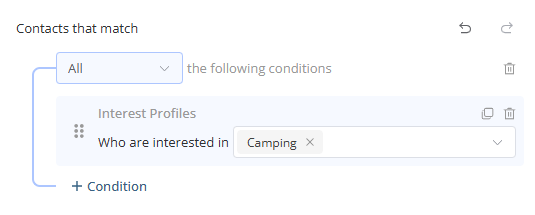
Click Calculate contacts to see how many contacts have this interest.
| Note: An interest can contain multiple topics separated by commas. For example, in the interest “Muscle tone, sports nutrition, strength training,” the three topics are interpreted using “OR” logic. Therefore, content matching any one of these topics will result in the interest being assigned to the contact. However, the entire entry counts as a single interest, and the topics it contains cannot be targeted separately. To target them individually, create a separate interest for each topic. |
Personalization
In addition to targeting, you can personalize the content of your emails based on your recipients’ interests. For example, you could add conditional content that is displayed only to contacts who have a specific interest.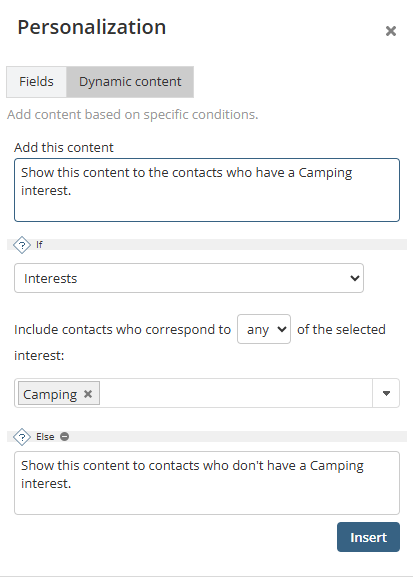
→ Learn more about email personalization