

To get started with the WhatsApp channel, you must first connect your WhatsApp account to your Dialog Insight account. This article explains how to set up the connection.
Prerequisites
- Have a WhatsApp Business account
- Have a sender phone number approved by WhatsApp
Step 1: Add your WhatsApp account information
1.1 Go to your Meta Business account and retrieve the following information:
WABA ID: Your WhatsApp Business Account identifier. Refer to the Meta documentation to find it.
App ID: Your Meta application identifier, available in its dashboard.
App Secret: Your application's secret key, available under Settings → Basic in the dashboard.
Refer to the Meta documentation.
1.2 Go to the user management section of your Meta Business account and generate an Access Token.
Make sure to grant the following permissions:
- business_management
- manage_app_solution
- whatsapp_business_manage_events
- whatsapp_business_management
- whatsapp_business_messaging
1.3 In Dialog Insight, go to Account → Channels → WhatsApp and click Connect WhatsApp Business.
1.4 Enter your Meta Business account information (WABA ID, App ID, App Secret and Access Token):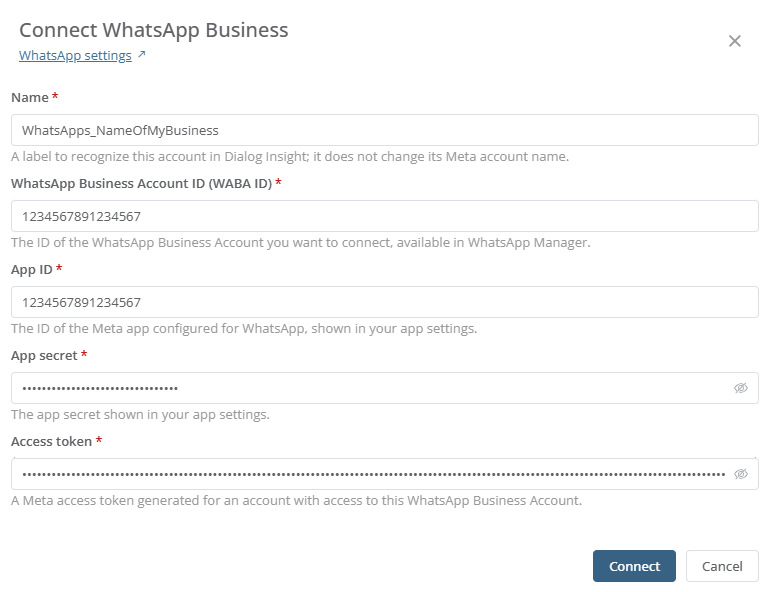
Step 2: Configure Webhooks
2.1 After clicking Connect, a window will appear. Copy the Callback URL and Verify Token: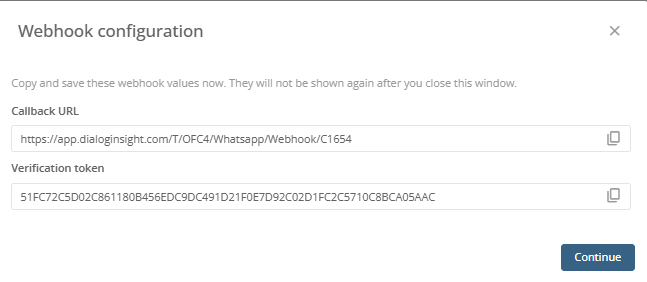
2.2 In your Meta account, go to Use Cases and click Customize.
2.3 Go to Basic Setup → Step 2. Production setup.
2.4 Click Configure Webhooks and enter the Callback URL and Verify Token.
2.5 Enable the following Webhook notifications to allow Dialog Insight to receive events associated with your WhatsApp account:
- template_category_update
- phone_number_quality_update
- business_capability_update
- message_template_status_update
- message_template_components_update
- messages
To learn more about Meta Webhooks, refer to the official documentation.
Step 3: Verify the connection
3.1 In Dialog Insight, go back to Account → Channels → WhatsApp.
3.2 Make sure your WhatsApp account phone numbers have been synchronized and display the status "Connected":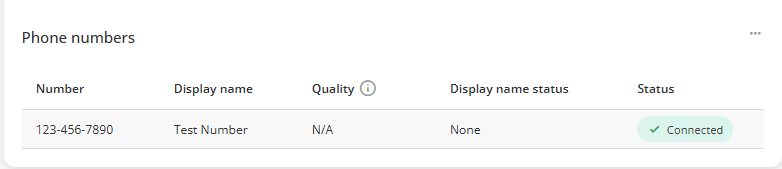
Notes
|